
PyCharm for Python Developers: Features, Pricing, Setup and Uses.

Introduction
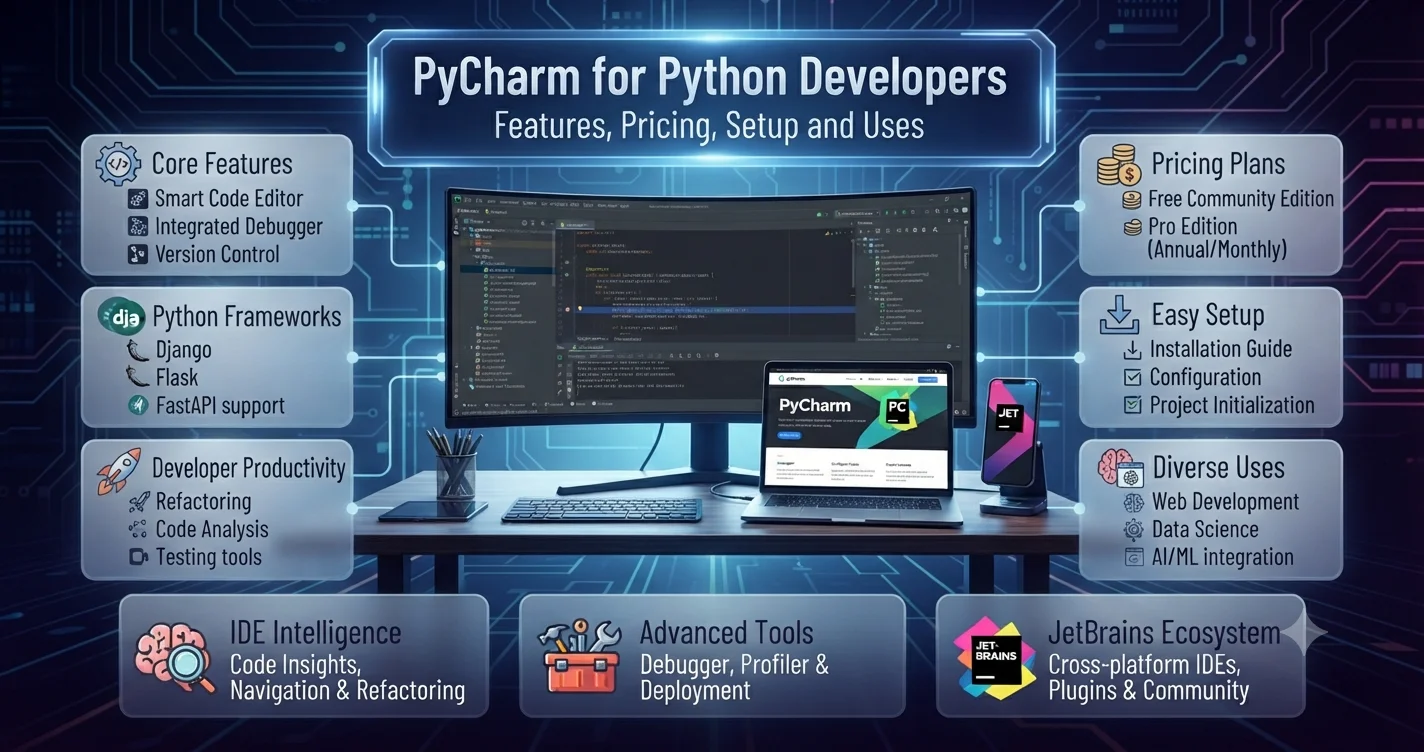
If you are looking for a dedicated environment for Python development, PyCharm is one of the best-known IDE options to consider. Developed by JetBrains, PyCharm combines Python coding, debugging, testing, project management, version-control integration, web development tools, notebooks, and other development features in one application. The product has also changed significantly in recent releases. Since PyCharm 2025.1, JetBrains has offered a unified PyCharm instead of separate Community and Professional products, with core functionality available for free and advanced capabilities available through a Pro subscription.
This guide explains what PyCharm is, how it works, its current features, free and Pro options, system requirements, supported Python versions, installation process, use cases, advantages and limitations, and how it compares with other Python development environments.
Quick Answer: What Is PyCharm?
PyCharm is a cross-platform integrated development environment (IDE) designed primarily for Python development.
JetBrains describes it as a dedicated Python IDE with tools for Python, web, and data science development. It runs on Windows, macOS, and Linux.
PyCharm provides tools for:
- Python code editing
- Code completion
- Debugging
- Testing
- Refactoring
- Project navigation
- Version control
- Virtual environments
- Package management
- Jupyter notebooks
- Web development
- Database and SQL work
- Remote development
- AI-assisted development
- Plugins and integrations
The current unified product also includes a free core version and a 30-day Pro trial for new installations.
What Changed With the New PyCharm?
Older tutorials often describe PyCharm as having two separate downloads:
- Community Edition
- Professional Edition
That information is now outdated.
Starting with PyCharm 2025.1, JetBrains combined the Community and Professional products into one unified PyCharm. Users receive access to core features for free, while advanced functionality is available through Pro. New installations automatically receive a 30-day Pro trial.
This change is important if you are searching for terms such as:
- PyCharm Community Edition
- PyCharm Professional
- PyCharm free download
- PyCharm Community download
- PyCharm Pro
- PyCharm free version
The separate Community Edition is no longer distributed as a standalone current product. JetBrains recommends using the unified PyCharm instead.
PyCharm Features
PyCharm brings many development tools into one interface.
1. Python Code Editing
Python development is the central purpose of PyCharm.
The editor provides features such as:
- Syntax highlighting
- Code completion
- Code inspections
- Quick fixes
- Refactoring
- Navigation
- Error detection
- Documentation lookup
- Type information
These features reduce the need to manually inspect every part of a large project.
For beginners, visual feedback can make it easier to identify syntax and structural problems. Experienced developers can use the same tools to navigate larger applications more efficiently.
2. Smart Code Completion
PyCharm can provide context-aware suggestions while you write code.
For example, when working with an object, the IDE can suggest relevant methods and attributes.
Code completion becomes particularly useful in larger projects because developers do not have to remember every class, function, parameter, or module name.
The editor also integrates inspections and quick fixes that can highlight potential problems while you work.
3. Debugging
Debugging is one of PyCharm’s major development features.
Instead of repeatedly adding print statements, developers can use a visual debugger to examine how a program behaves.
Typical debugging tasks include:
- Setting breakpoints
- Stepping through code
- Inspecting variables
- Evaluating expressions
- Watching program execution
- Investigating exceptions
JetBrains states that PyCharm supports debugging locally, on remote machines, in virtual environments, and inside containers.
PyCharm 2026.2 also uses debugpy as the default debugger engine for Python projects and Jupyter notebooks, based on the Debug Adapter Protocol.
4. Refactoring
Refactoring means changing the structure of code without intentionally changing its behavior.
For example, a developer may want to:
- Rename a variable
- Rename a function
- Extract a method
- Move code
- Change a function signature
- Convert modules into packages
PyCharm provides automated refactoring tools for many of these tasks.
This can be particularly helpful in large applications where manually changing references could introduce mistakes.
5. Testing
PyCharm integrates with Python testing workflows.
Testing tools can help developers:
- Create tests
- Run test suites
- Debug failed tests
- Inspect results
- Navigate between tests and source code
A development environment that combines coding, testing, and debugging can make it easier to identify problems before software reaches users.
6. Jupyter Notebook Support
One of the major changes in recent PyCharm versions is the inclusion of Jupyter support in the free core functionality.
JetBrains states that basic Jupyter Notebook support is now available without a Pro subscription. This includes running notebooks, debugging, output rendering, and intelligent code assistance.
Jupyter support is useful for:
- Data analysis
- Machine learning
- Experimentation
- Visualization
- Educational projects
- Scientific computing
Some advanced notebook capabilities remain part of Pro, including features such as remote notebooks, dynamic tables, and SQL cells.
7. Web Development
PyCharm is not limited to basic Python scripts.
Recent releases have expanded its web-development capabilities.
PyCharm 2026.1 added more JavaScript, TypeScript, and CSS functionality to the free core experience, along with support for tools such as Vite and integrations involving ESLint, Prettier, and other web-development workflows.
This makes PyCharm useful for developers building applications where Python works alongside frontend technologies.
Developers can work with technologies such as:
- Python
- HTML
- CSS
- JavaScript
- TypeScript
- React
- JSON
- XML
Some framework-specific capabilities remain dependent on the Pro feature set. JetBrains documentation specifically notes Pro support for frameworks such as Django, Flask, and Pyramid.
8. Database and SQL Tools
PyCharm’s feature set also includes database and SQL capabilities.
These tools can be useful when a Python application communicates with a database.
Developers may need to:
- Inspect database structures
- Run SQL queries
- Examine tables
- Work with database connections
- Manage data during development
Some advanced database capabilities are part of the Pro functionality, so users should check the current JetBrains feature documentation when deciding whether they need a subscription.
9. Version Control
Software projects frequently rely on version-control systems.
PyCharm integrates with Git and other version-control workflows, allowing developers to manage changes without leaving the IDE.
Common activities include:
- Viewing file changes
- Creating commits
- Reviewing differences
- Managing branches
- Resolving conflicts
- Working with repositories
For teams, version control is essential because it provides a structured way to collaborate and maintain project history.
10. AI-Assisted Development
AI is now an important part of the modern PyCharm ecosystem.
JetBrains has integrated AI tools and coding agents into its development environment.
The PyCharm feature page describes JetBrains AI and Junie, JetBrains’ coding agent, as tools that can help with tasks such as planning, writing, refining, and testing code.
PyCharm 2026.1 also introduced the Agent Client Protocol (ACP) Registry, allowing developers to discover and install compatible AI agents from within the IDE. JetBrains says the ecosystem can include agents such as Claude Agent, Codex, and others supported through ACP.
These capabilities can be useful, but developers should still review generated code carefully.
AI-generated code can contain:
- Logic errors
- Security problems
- Incorrect assumptions
- Inefficient implementations
- Outdated approaches
AI assistance should therefore complement development skills rather than replace code review.
PyCharm 2026.2: What’s New?
If you are installing PyCharm now, recent releases are particularly relevant.
JetBrains’ PyCharm 2026.2 release introduced several changes. These include:
- Rust plugin support for Python extensions
debugpyas the default debugger- Improved
uvxutility management - Multi-project support for uv, Poetry, and Hatch workspaces
- An editor minimap
- Pyrefly integration for faster type insights
- AI project generation
- Further AI and notebook improvements
The 2026.2.1 update also added improvements involving AI agents working with live Jupyter kernels, Python environment selection, package management, marimo notebooks, and clearer type-checking information.
These changes demonstrate that PyCharm is continuing to evolve beyond traditional Python code editing.
Is PyCharm Free?
Yes, PyCharm has a free core version.
The current unified PyCharm model gives users access to essential functionality without a paid subscription. JetBrains describes the core version as free forever.
New users also receive a 30-day Pro trial, which provides access to the advanced functionality during the trial period.
After the trial, users can:
- Continue with the free core features
- Purchase a Pro subscription for advanced functionality
This means you do not need to purchase PyCharm simply to learn Python or build projects using its free core features.
Can PyCharm Be Used for Commercial Projects?
Yes.
JetBrains states that free PyCharm can be used to develop proprietary and commercial software.
However, developers should always review the licensing terms for specific bundled proprietary plugins and other components if they are creating derivative products or redistributing software.
For ordinary application development, the availability of a free core PyCharm experience makes the IDE accessible to both learners and professional developers.
PyCharm System Requirements
Current JetBrains documentation lists the following baseline hardware requirements for PyCharm 2026.2:
| Requirement | Minimum |
|---|---|
| CPU | x86_64 or ARM64, 4 cores |
| RAM | 8 GB total, 3 GB available for IDE processes |
| Storage | 10 GB |
| Display | 1280 × 720 |
| Operating systems | Windows, macOS, Linux |
Actual performance can vary depending on project size, plugins, indexing activity, virtual machines, notebooks, databases, and other workloads.
A larger Python project may benefit from more memory than the documented minimum.
Which Python Versions Does PyCharm Support?
The current PyCharm documentation lists support for:
- Python 2.7
- Python 3.9 through Python 3.15
However, developers should distinguish between IDE support and the broader lifecycle of a Python version.
For a new project, it is generally sensible to choose a currently supported Python release that matches the requirements of the frameworks and packages you plan to use.
Older Python versions may remain useful for maintaining legacy applications, but new projects should consider compatibility and security support.
How to Install PyCharm
Installing the current version is relatively straightforward.
Step 1: Visit JetBrains
Download PyCharm from the official JetBrains website rather than an unofficial software-download site.
The official download page provides installers for Windows, macOS, and Linux.
Step 2: Choose Your Platform
Select the appropriate installer for your operating system.
On macOS, JetBrains provides installers for Intel and Apple Silicon systems.
Step 3: Install the Application
Run the installer and follow the setup instructions.
You can also use JetBrains Toolbox if you prefer managing JetBrains products through the Toolbox application.
Step 4: Start PyCharm
Open the application after installation.
New users can begin with the included Pro trial.
Step 5: Configure Python
PyCharm needs access to a Python interpreter.
You can configure an existing Python installation or create/use a project environment depending on your workflow.
Step 6: Create a Project
Create a new Python project or open an existing repository.
From there, you can configure dependencies, write code, run tests, and debug the application.
PyCharm for Beginners
PyCharm can be useful for people learning Python, but beginners do not need to use every feature immediately.
A simple learning workflow might look like this:
- Install Python.
- Install PyCharm.
- Create a project.
- Write a basic Python script.
- Run the program.
- Learn how variables and functions work.
- Practice debugging.
- Add packages when necessary.
- Learn Git.
- Build a small project.
Starting with the basics prevents the IDE from becoming more complicated than the programming language itself.
For a beginner, features such as autocomplete, syntax highlighting, error inspections, and debugging can provide useful guidance while learning.
PyCharm for Professional Developers
Professional developers can use PyCharm for considerably more complex workflows.
Examples include:
- Backend applications
- Data science projects
- Automation
- Machine learning
- APIs
- Web applications
- Enterprise software
- Testing
- Database-backed applications
- Containerized development
Remote-development capabilities and support for modern Python tooling can also make it suitable for teams working across different environments.
PyCharm for Data Science
PyCharm can be useful for data-focused Python development because of its Jupyter Notebook integration.
A data workflow might include:
- Loading datasets
- Cleaning data
- Writing Python code
- Creating visualizations
- Running notebooks
- Building reusable Python modules
- Testing data-processing functions
The advantage of an IDE is that notebooks do not have to remain isolated from the rest of the project.
Developers can organize reusable code into Python modules and combine exploratory work with structured application development.
PyCharm for Web Development
PyCharm can also support full-stack workflows.
A typical Python web project could involve:
Backend: Python and a web framework
Frontend: HTML, CSS, JavaScript, or TypeScript
Database: SQL-based database
Version control: Git
Deployment: Cloud or container infrastructure
PyCharm’s growing web-development support means developers can work with several parts of this stack in one environment.
Advantages of PyCharm
Dedicated Python Experience
PyCharm is designed specifically around Python development.
Strong Code Intelligence
Autocomplete, navigation, inspections, and refactoring can improve productivity.
Integrated Debugging
Developers can investigate problems using a visual debugging workflow.
Jupyter Support
Basic Jupyter support is now part of the free core product.
Cross-Platform
PyCharm supports Windows, macOS, and Linux.
Large Ecosystem
JetBrains provides plugins, documentation, support resources, and integrations.
Professional Features
Developers who need advanced web, database, remote, or framework capabilities can access additional functionality through Pro.
Potential Limitations of PyCharm
PyCharm is powerful, but it may not be ideal for every developer.
Resource Usage
A full IDE can use more system resources than a lightweight editor.
Developers working on older computers may notice this more clearly.
Learning Curve
Beginners may initially find the number of menus, settings, tools, and project options overwhelming.
Pro Features
Some advanced capabilities require a paid subscription after the Pro trial ends.
More Than You Need for Simple Scripts
If you only want to write a small Python file occasionally, a simpler editor may be enough.
PyCharm vs. VS Code
PyCharm and Visual Studio Code are frequently compared because both can support Python development.
| Feature | PyCharm | VS Code |
|---|---|---|
| Python-focused IDE | Yes | No, extension-based |
| Python development | Built in | Requires Python extensions |
| Debugging | Integrated | Available with extensions |
| Refactoring | Strong Python integration | Available through extensions |
| Jupyter | Built in | Available through extensions |
| Web development | Strong support | Strong extension ecosystem |
| Extensions | JetBrains plugins | Large extension marketplace |
| Free core option | Yes | Yes |
The better choice depends on how you work.
Developers who want a dedicated Python environment may prefer PyCharm’s integrated experience. Developers who want a highly customizable general-purpose editor may prefer VS Code.
PyCharm vs. a Lightweight Code Editor
A lightweight editor can be excellent for quick scripts and simple projects.
PyCharm becomes more useful as the project grows.
For example, a large application may contain:
- Hundreds of files
- Multiple packages
- Tests
- Virtual environments
- Database connections
- Framework integrations
- Deployment configuration
An integrated IDE can make navigation and maintenance easier in these situations.
Is PyCharm Good for Python?
PyCharm is specifically designed for Python development, so Python is its central use case.
Its features cover much more than writing syntax. Developers can edit, run, test, debug, refactor, navigate, manage dependencies, use notebooks, and work with related web technologies from the same environment.
That makes it suitable for learners as well as developers working on larger Python projects.
Common PyCharm Problems
Even experienced users can encounter configuration issues.
Python Interpreter Not Found
This usually means PyCharm has not been configured to use the correct Python installation or virtual environment.
Packages Are Missing
A package may have been installed into a different environment from the one used by the project.
Check the selected interpreter and package environment.
Code Runs Outside the IDE but Not Inside It
This can happen when terminal and IDE configurations use different environments or variables.
Slow Indexing
Large projects can take time to index, especially immediately after opening them.
Plugin Conflicts
Installing too many plugins can increase resource usage or create compatibility problems.
Use only the plugins you actually need.
Frequently Asked Questions
What is PyCharm used for?
PyCharm is primarily used for Python development. It provides tools for coding, debugging, testing, refactoring, project management, notebooks, web development, and other development workflows.
Is PyCharm free?
Yes. PyCharm provides free core functionality. New installations also include a 30-day Pro trial, after which users can continue with the free core features or purchase Pro for advanced capabilities.
Is PyCharm Community Edition still available?
The standalone Community Edition has been discontinued as a current separate product. JetBrains now distributes a unified PyCharm containing the free core functionality.
Can I use PyCharm for commercial projects?
Yes. JetBrains states that free PyCharm can be used to develop commercial and proprietary software, subject to the applicable licensing terms.
Does PyCharm support Jupyter Notebook?
Yes. Basic Jupyter Notebook support is included in PyCharm’s free core functionality. Some advanced Jupyter features require Pro.
Does PyCharm support Django and Flask?
Yes. JetBrains documentation lists Django, Flask, and Pyramid development among the capabilities available in Pro mode.
Which operating systems support PyCharm?
PyCharm supports Windows, macOS, and Linux.
Can beginners use PyCharm?
Yes. Beginners can use the free core version to learn Python and build projects. The IDE provides features such as syntax highlighting, code completion, inspections, debugging, and project management that can help during the learning process.
Final Thoughts
PyCharm has evolved from a two-edition Python IDE into a unified development product with free core functionality and optional Pro capabilities. The change is especially important for anyone searching for the old Community Edition because current JetBrains releases use a single PyCharm installation instead.
For beginners, the free core features provide enough functionality to learn Python and build real projects. More experienced developers can use PyCharm’s debugging, testing, refactoring, Jupyter, web-development, database, remote-development, and AI-assisted workflows for larger projects.
The right choice ultimately depends on your development needs. A beginner writing small Python scripts may only need the free features, while a professional working with advanced web frameworks, databases, remote environments, or other Pro capabilities may benefit from the subscription.
As PyCharm continues to receive frequent updates, checking the current JetBrains documentation is the safest way to confirm feature availability, system requirements, licensing, and supported workflows before installing or upgrading.
